Variations let you offer different options for the same product, like sizes, colors, or styles.
When to Use Variations
Use variations if your product has options like:
- Different pricing per option
- Small / Medium / Large
- Red / Blue / Black
- Digital vs Physical
Add product options
Step 1: Open your product
- Go to Online Store → Products
- Click the product you want to edit
(or click “Add New” to create a new one)
Step 2: Add an option
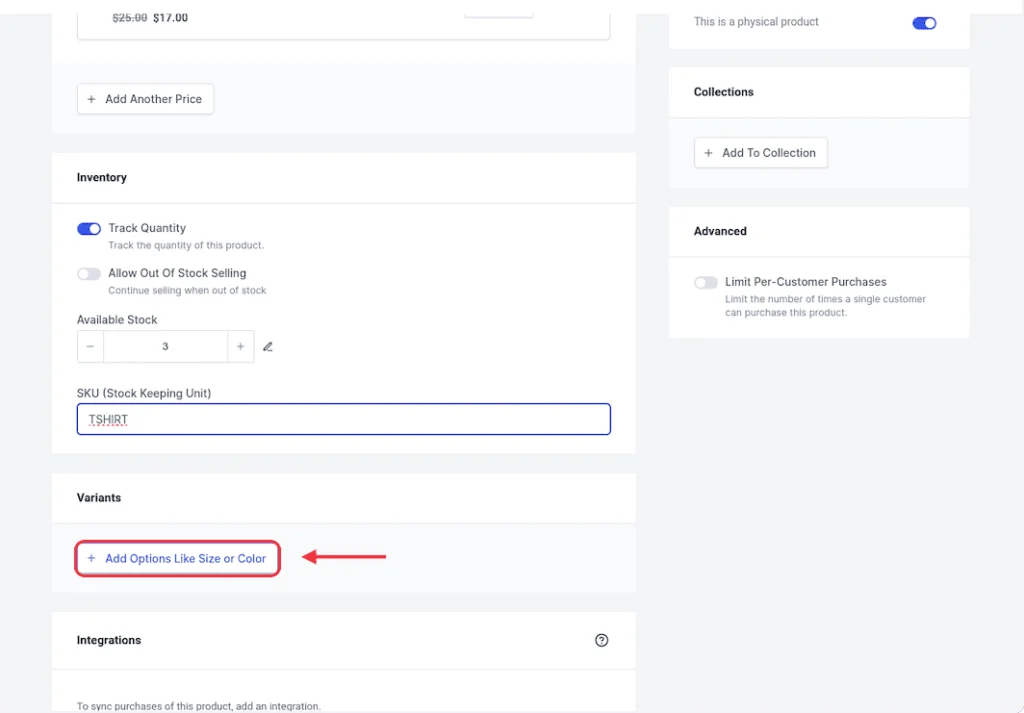
- Scroll to the Variants section
- Click “Add Options Like Size or Color”
Step 3: Set up your options
- Enter an Option Name
(example: Size or Color)
- Add your Option Values:
- Small, Medium, Large
- Red, Blue, Black
👉 These names show on your product page, so keep them clear.
Click Done when finished.
Note: You can add more options (Optional)
Click Add More Options to create combinations like:
Style + Material
Size + Color
Step 4: Choose option type
Each option can behave differently:
- Dropdown – best for most products
- Radio – great for sizes or simple choices
Step 5: Variants are created automatically
As soon as you add options, Create A Shoppe automatically builds all combinations for you (no extra step needed).
Step 6: Customize each variant
Now you can edit each variation individually.
You can set:
- Price (different per option)
- SKU
- Stock level (if inventory is enabled)
- Image (shows when that option is selected)
👉 If you don’t set a price, it uses the main product price by default.
Step 7: Add Images to variants (optional but powerful)
You can assign images to specific options so the product image changes when selected.
Example:
- Red → shows red product image
- Black → shows black product image
Step 8: Save your product
Click Save Product
What your customers see
On your product page, customers can:
- Choose options (size, color, etc.)
- See the correct image update
- See price changes (if different)
- Add the exact version to cart
Tips
- Keep option names simple and clear
- Use images for visual options (colors, styles)
- Turn on inventory if you need stock per variant
- Avoid too many combinations (can slow things down)
That’s It
Just add options → edit your variants → save.